 HuntGrid
Switching apps
Bring your pins from onX, HuntStand or your Garmin
Your stands, pins, lines and tracks belong to you. Export a GPX, KML or KMZ file from onX, HuntStand, a Garmin GPS or almost any mapping app, and import it into HuntGrid in a few minutes. You can export it all again whenever you like.
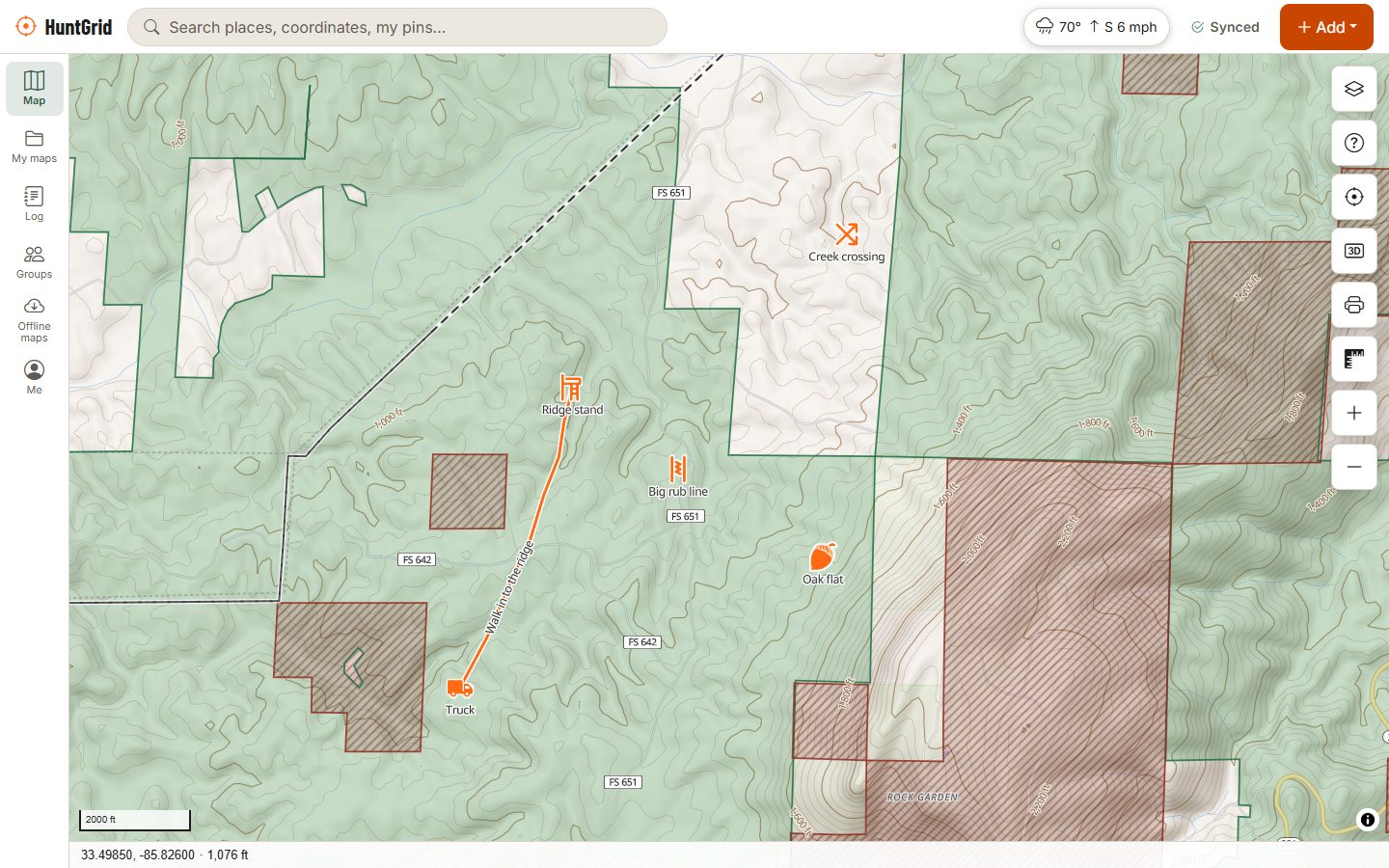
Map data © OpenStreetMap contributors, © OpenMapTiles; terrain: Copernicus WorldDEM-30 (credits)
What HuntGrid can read
Files up to 20 MB with waypoints, lines, areas and tracks. You see everything in the file and choose what to bring in before anything is saved.
GPX
The standard GPS format: waypoints, routes and tracks. Tracks with times come in as recorded tracks, with their stats.
KML and KMZ
Google Earth files and many apps’ exports. Folders can come in as folders, with their icons and colours where the file has them.
GeoJSON and CSV
GeoJSON with marker symbols and colours, and spreadsheets of points: HuntGrid finds the latitude and longitude columns itself.
Icons matched
Common symbol names from Garmin, onX and HuntStand files are matched to HuntGrid’s hunting icons, so a stand stays a stand. Change any of them after.
Step by step
Get the file out of your other app
Menus in other apps change over time; their own help pages have the latest steps.
From onX
On a computer, sign in to the onX web map, select the waypoints, lines, areas and tracks you want (or a whole folder), and use the export option to save GPX or KML.
From HuntStand
Look for the export or share option for your pins, lines or hunt areas and choose GPX or KML. If you only get a link, open it on a computer and download the file there.
From a Garmin
Connect a handheld GPS to a computer with its USB cable: your waypoints and tracks are GPX files in the Garmin/GPX folder. From Garmin Explore, export a collection as GPX or KML on its website.
Import into HuntGrid
Open My maps, choose Import, pick the file, untick anything you don’t want, choose a folder and import. It syncs to your other devices. Full import guide.
What to expect after you switch
Your markup comes across
Export files carry the things you made: pins, lines, areas and tracks. Map layers come from HuntGrid itself, such as public land, hunting units and terrain.
Export any time
Export a folder or a selection as GPX, KML, GeoJSON or CSV, right on your device and even offline, or download your whole account with photos as a ZIP.
Bring the camp along
Import into a group folder and everyone at camp gets the same stands. Hunting groups.
onX, HuntStand and Garmin are trademarks of their owners. HuntGrid isn’t affiliated with them.
Questions
Still have a question? Read the help pages or email support@huntgrid.net.
Can I transfer my onX waypoints to another app?
Yes. Export them from the onX web map as a GPX or KML file, then import that file in HuntGrid from My maps. You choose what to bring in, and stand and sign symbols are matched to HuntGrid icons where possible.
How do I get waypoints off my Garmin GPS?
Connect the GPS to a computer with its USB cable and open the Garmin/GPX folder: your waypoints and tracks are GPX files there. Import them into HuntGrid from My maps.
What file types can HuntGrid import?
GPX, KML, KMZ, GeoJSON and CSV files up to 20 MB, with waypoints, lines, areas and tracks.
Will my icons and folders come across?
Mostly. Icons are matched from common symbol names, KML folders can be kept as folders, and colours come across where the file has them. Anything can be changed after the import.
Can I export my data from HuntGrid?
Yes, any time: a folder or selection as GPX, KML, GeoJSON or CSV, or your whole account with photos as a ZIP file.
Is HuntGrid affiliated with onX, HuntStand or Garmin?
No. Those names are trademarks of their owners and are used here only to describe which files you can import.
Your next hunt starts on the map
Create a free account, download your area and head out. No credit card, no per-state fees.
Already have an account? Sign in